Subscribe to relevant changes
Select which status changes should generate email for the user's own work and for work the user can approve.
Configure useful email updates when applicable timesheets or expenses change status, then schedule reminders for the recurring follow-ups your team needs.
Choose events, days, and times for each user.
Notification settings bring event subscriptions and recurring reminders together. Email can be enabled or disabled for the user, and each applicable option can be configured independently.
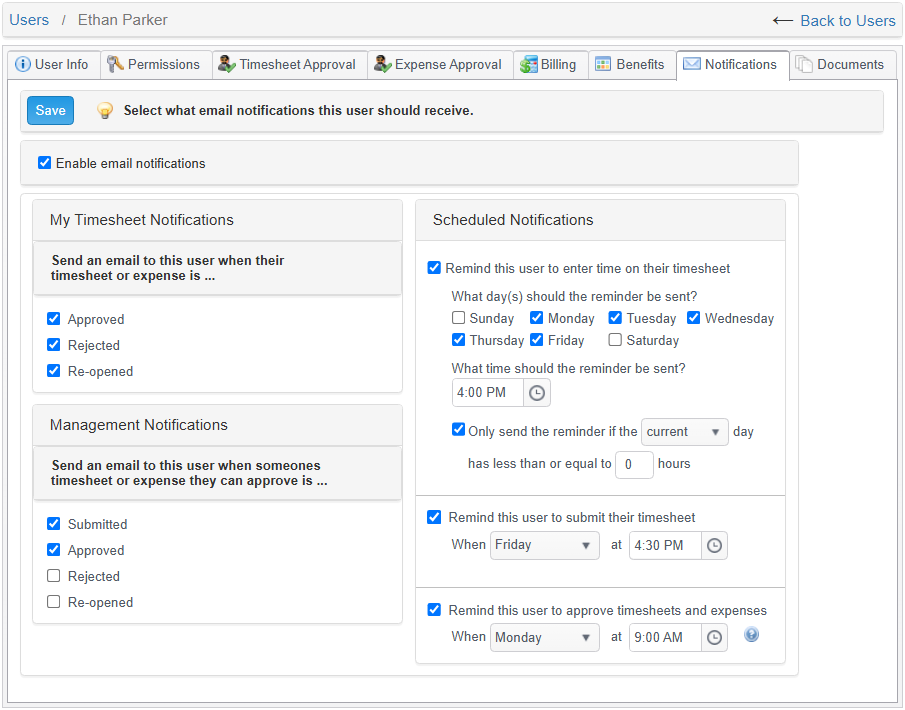
Select which status changes should generate email for the user's own work and for work the user can approve.
Choose the days and times that match the organization's time-entry, submission, and review routines.
The scheduled approval email is sent only when timesheets or expenses are waiting for that user's approval.
Daily time entry and weekly handoffs need different timing. Configure each reminder separately instead of sending the same prompt to everyone.
Select one or more days and a send time. An optional condition can limit the email to days with no more than a specified number of hours entered for the current or previous day.
Choose a day of the week and time to remind the user to submit their timesheet.
Choose a weekly day and time. The email is sent only when a timesheet or expense needs that user's approval.
A company preference controls whether users can change their own notification preferences. When self-service changes are disabled, a user with User Management permission can configure notifications from the user setup screen.
Enable self-service changes for all users, or keep preference changes with users who have User Management permission.
Create a free account without a credit card.