Connect PTO to time entry
Select the client, project, and task people use to record PTO on their timesheets. The task links recorded PTO hours to balance calculations.
Set the company-wide tracking rules once, configure the accrual schedule that applies to each person, and use timesheet records to keep earned and used PTO in view.
Company settings and individual schedules work together.
Enable PTO benefits, connect PTO usage to a specific client, project, and task, and choose the shared rules Timogix uses when presenting and resetting balances.

Select the client, project, and task people use to record PTO on their timesheets. The task links recorded PTO hours to balance calculations.
Keep balances from resetting, reset them on each person's benefit start date, or reset them on January 1. Applicable carryover amounts are configured on the individual schedule.
Define how many hours equal one PTO day, then show balances in days or hours with the selected number of decimal places.
Optionally hide the designated PTO task from a person's timesheet until PTO benefits are enabled for that user.
Need the setup path and field reference? Read the PTO global settings guide.
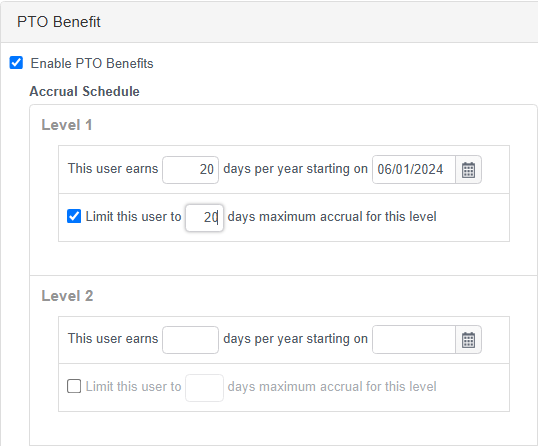
With PTO enabled globally, a user with User Management permission can enable the benefit for an individual and configure that person's earned time, effective dates, limits, and calculation method.
Enter the annual amount for the first level and add later levels when the policy changes after a defined date. Each level can also have an optional maximum accrual.
Accrue PTO a little each day, or grant the level's annual amount on its benefit start date. The saved schedule also shows accrued time, manual adjustments, PTO used, and the resulting balance.
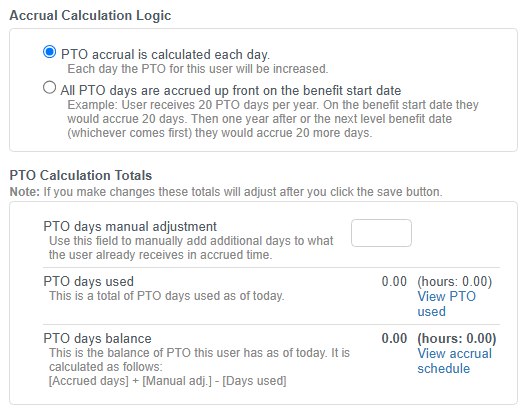
Carryover is available when a reset date is configured and PTO is accrued daily. When the annual amount is granted up front, Timogix clears the per-level carryover values.
For the user setup location and reporting notes, read the PTO user settings guide.
Timogix combines the configured accrual schedule with manual adjustments and time recorded against the designated PTO task. That keeps the current amount traceable to the settings and timesheet records that produced it.
Create a free account without a credit card.